
Genesis Digital Key 2 Explained: What It Is and How to Set It Up
Say goodbye to key-hunting. The Genesis Digital Key 2 redefines how you access your car. This smartphone-based system changes how Genesis owners interact with their vehicles. At Genesis of Columbia, we’ve created this guide to show you how to remotely unlock and start your vehicle, as well as allow other drivers to borrow your Genesis, just using your phone.
What Is Genesis Digital Key 2 and How Does It Work?
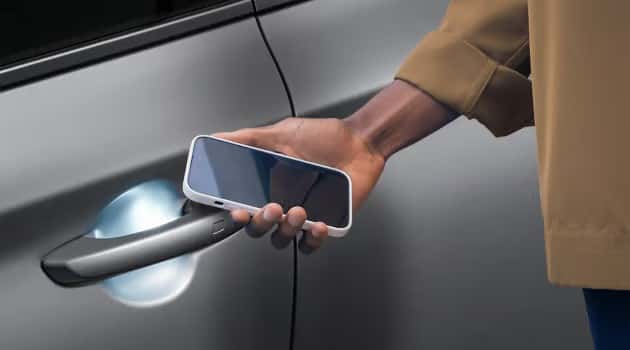
Genesis Digital Key 2 allows you to control your car with your smartphone by pairing it with your vehicle. You can lock or unlock doors, start the engine, adjust the climate, and close or open windows. The system uses Bluetooth Low Energy and Ultra-Wideband (UWB) technology on compatible phones. Near Field Communication (NFC) phones require you to tap your phone on the door handle.
Three wireless technologies make this work. UWB unlocks your car automatically when you’re within approximately 5 feet, and NFC acts as a backup and works even with a dead phone battery. The premium version combines NFC, UWB, and Bluetooth and operates without cell service, so you won’t get locked out during coverage gaps.
Which Genesis Models Are Compatible With Digital Key 2?
You’ll find Digital Key 2 across most of the recent Genesis lineup — the GV60, GV70, GV70 ELECTRIFIED, GV80, G80, G80 ELECTRIFIED, and the G90. The 2025 GV80 takes it up a notch by including fingerprint authentication, while the GV60 includes smart key capability on all trim levels.
The more recent your Genesis, the more Digital Key 2 features it has. For instance, the upcoming 2026 GV70 offers improved security through its driver-assistance system and customization options, especially voice control. Since not all models come with the same features, make sure you check what your preferred model offers when you browse for a new Genesis in Columbia.
Setting Up the Genesis Digital Key 2 on Your Smartphone
First, check your phone compatibility. Android requires version 7.0 or newer with NFC and Bluetooth BLE 4.0 or newer, and ensure that Bluetooth and NFC are enabled on your smartphone. Download the Genesis Intelligent Assistant app from your app store and enroll in Genesis Connected Services. You’ll create an account, pair it with your vehicle, and verify your identity. It takes a few minutes, and your secure access info will be saved to both your phone and car. You’ll need your key fob or fobs during activation, and remember to turn your vehicle on.
How To Set Up Genesis Digital Key
Here we’ll guide you through your Genesis smartphone key setup:
- Open the Genesis app and log in.
- Go to your infotainment system and select Setup.
- Navigate to Vehicle > Digital Key > Smartphone Key.
- Select My Smartphone Key and tap Save on the touch screen.
- Open the Genesis Intelligent Assistant app and select Set Up Digital Key.
- Follow the on-screen prompts.
- Place your phone on the wireless charging pad to complete the pairing.
- Wait for confirmation that the registration was successful.
- Remove your phone and test the key.
How To Lock, Unlock, and Start Your Vehicle Using the App
Daily use is simple. Hold your phone against the driver’s or passenger’s door handle for approximately two seconds, and it unlocks. The updated system works quicker, as you can just hold your phone near the driver’s handle for one second, and there’s no need to wake your phone. This is handy when juggling coffee and a briefcase on rushed mornings.
To start driving, place your phone face up on the charging pad, press the brake, and press the ignition button. The pad charges and confirms That’s My Owner. Using the app, you can even start your car remotely and set the temperature before getting in, which is a lifesaver during brutal South Carolina summers.
The app gives you control from anywhere. You can check if doors are locked, see if the engine’s running, and monitor your climate settings. Functions work differently by distance. Close-range (tap-to-unlock) works within 5 feet, while remote controls work from a distance.

Sharing Vehicle Access With Family and Friends
Genesis digital key sharing access handles up to four users, and sharing is simple. You just need to enter their name, email, phone number, the duration of use, and which features they can access. Each user has a profile that automatically adjusts settings, such as seat and mirror position or radio stations, when they use their phone to unlock the vehicle. Sending access is easy, as they’ll receive an email or text with setup steps to gain entry.
The remote options are ideal for service appointments or when your teen forgets their phone, as you can unlock doors or start the engine for someone even when you’re across town. You can track who’s using your car and immediately revoke access if needed.

Digital Key 2 Safety Features and Backup Options
Your digital key sits safely in your phone’s wallet app, locked behind encryption and device security. If you unlock but don’t open a door within 30 seconds, the car locks itself again. Some owners see a Check Digital Key System warning, which occasionally happens on new cars and usually means a connection hiccup.
You’ll receive a physical NFC key card as backup for dead batteries or app glitches. If your phone gets stolen, immediately log into MyGenesis online and disable your digital key access. You’ve got other fallbacks, such as the hidden mechanical key in your fob and starting methods that don’t need your smartphone. The system monitors for unauthorized access and locks down if needed.
Experience Genesis Digital Key 2 Technology at Genesis of Columbia
If you need assistance with Digital Key 2, that’s what we do at Genesis of Columbia. Our technology team is familiar with South Carolina drivers and knows the Genesis system inside out. We offer support to both new customers and current owners, and we enjoy demonstrating how to use your car’s impressive features. When the Check Digital Key System or Connection Problem light shows up, we’ll fix it. Contact us online or by phone at 803-873-9175, and our technology wizards will walk you through setup, usage, or any glitches you may be struggling with.
Images by OEM

0 comment(s) so far on Genesis Digital Key 2 Explained: What It Is and How to Set It Up