
How to Set Up and Customize Driver Profiles in Your 2026 Genesis
If you share your Genesis with family around Columbia, you’ve probably experienced this: someone else drove last, and now your seat position, mirrors, temperature, and radio stations need adjusting before you can even back out. Genesis Driver Profiles solve this by remembering what each driver prefers and switching everything automatically when you get in.
At Genesis of Columbia, our certified service team walks customers through these tech features during delivery or whenever needed. Whether you’re new to Genesis or coming from an older model, Driver Profiles transform how families share cars. Want to learn more? Contact our team for a hands-on demo of your 2026 Genesis features.
Understanding Genesis Driver Profiles and Their Benefits
Think of Genesis Driver Profiles as digital memory for your driving preferences. The system gives you three profile options:
- Driver 1: Complete customization access
- Driver 2: Secondary profile with full capabilities
- Guest: Temporary setup for occasional drivers
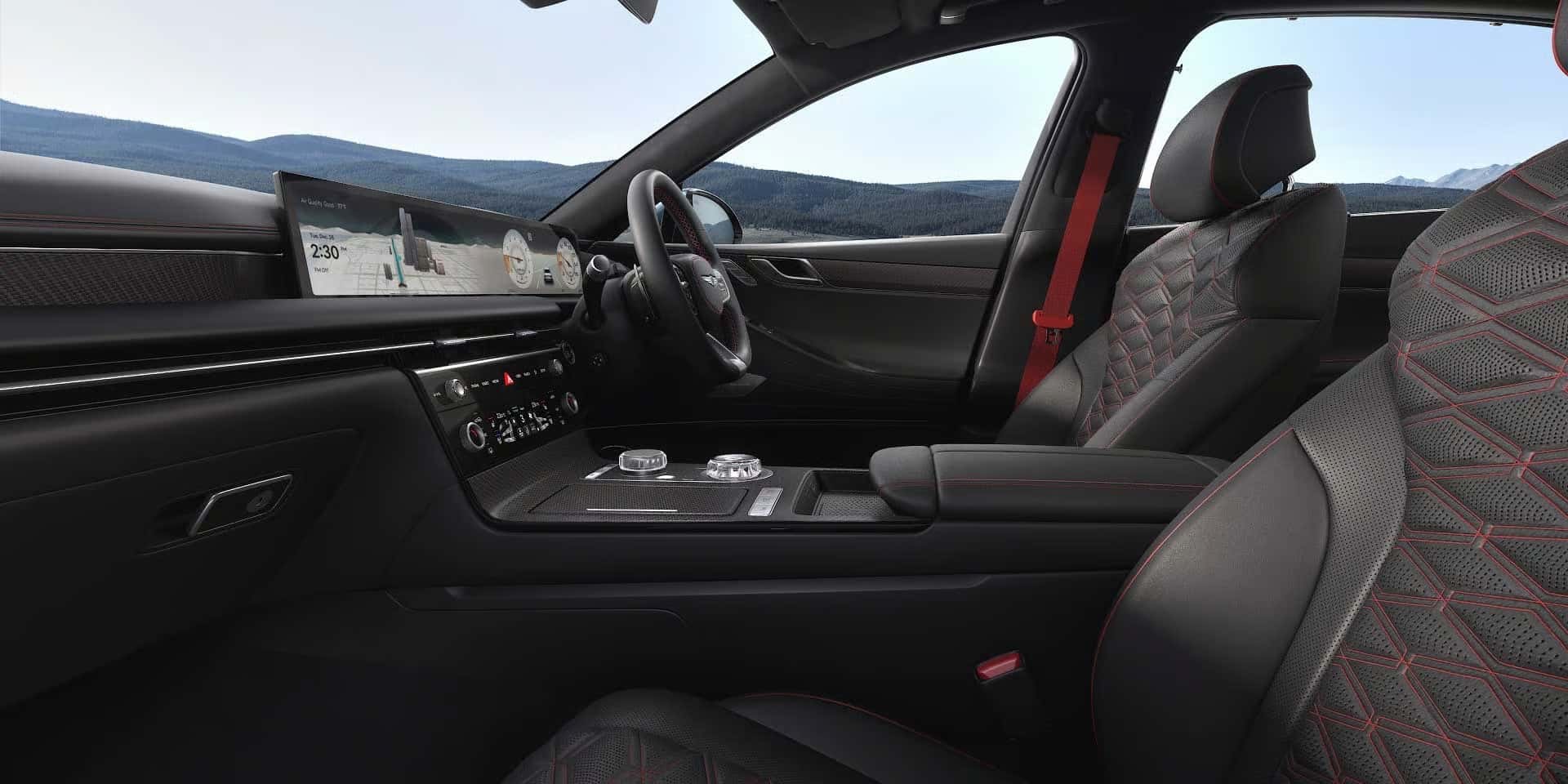
Each profile captures your seat position (including two memory positions), mirror angles, steering wheel height and distance, climate preferences, radio favorites, head-up display configuration, and vehicle settings. You can add custom names and photos, then secure profiles with passwords, fingerprint scanning, or facial recognition.
This means Columbia families heading to the coast don’t waste time adjusting controls. The car recognizes you from your key fob or phone key and fixes everything in seconds.
How to Create Your Driver Profile Through the Infotainment System
Setting up a profile takes about five minutes from the driver’s seat:
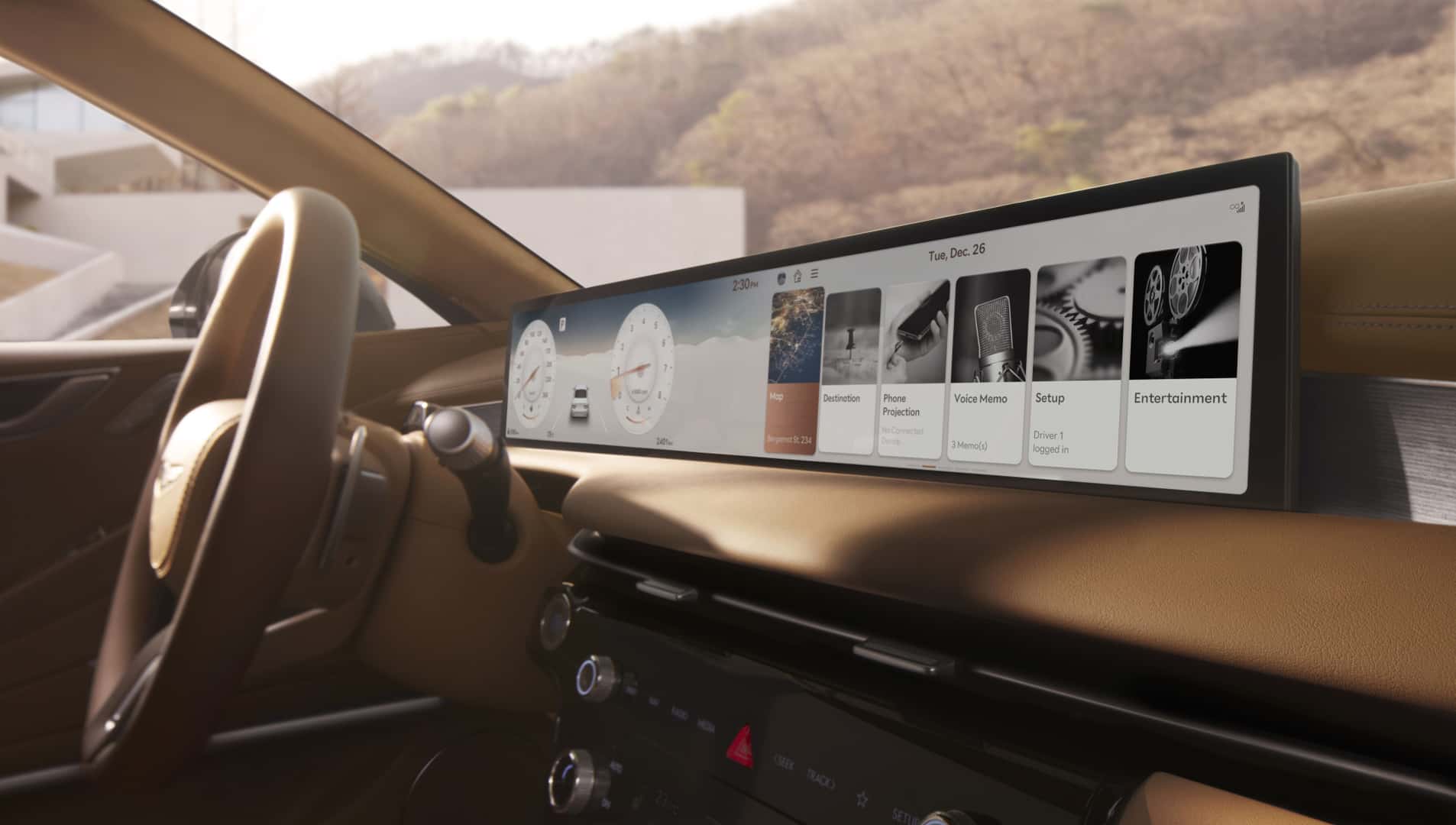
- Find the profile menu: Tap the profile icon in the top corner of your infotainment home screen
- Choose “Add New Profile”: Select Driver 1 or Driver 2 for regular users (Guest works for temporary drivers)
- Name your profile: Use something simple like “Sarah” or “Dad”
- Pick a profile picture: Choose a built-in option or add your own photo
- Configure security options: Add a password, fingerprint, or face recognition if you want extra protection
- Save everything: The system stores your profile immediately
You can also navigate through Setup → User Profile → Add New Profile. The system provides clear instructions throughout the process.
Customizing Seat, Mirror, Steering, and Climate Settings
After creating your profile, it’s time to dial in your perfect driving setup:
Seat and Mirror Configuration:
- Position your seat exactly where you want it (position, height, back support, cushion angle)
- Adjust both outside mirrors to eliminate blind spots
- Set steering wheel tilt and reach
- Hold the “SET” button on your door until you hear a beep, then press the memory button 1
- For a second position, adjust again and save to memory button 2
Two memory settings per profile work great if you prefer different positions for highway driving versus city parking.
Climate and Comfort Preferences:
Your profile remembers temperature, fan speed, heated or cooled seats, and airflow direction. Set your ideal cabin temperature and activate seat heating or cooling as needed. The system learns these automatically while your profile is active.
Other Personal Settings:
The system saves radio stations, head-up display brightness and layout, plus various driving settings. Check Setup → User Profile → Customize to see every adjustable option on your specific trim level.
Linking Driver Profiles to Genesis Connected Services
Connecting your profile to Genesis Connected Services enables cloud storage and remote control through MyGenesis. This complimentary service comes with 2023 and newer Genesis vehicles for first owners with no expiration.
Account Connection Steps:
- Go to Setup → User Profile → Link Connected Services Account
- Enter your owners.genesis.com login details (create an account first if needed)
- Complete the authorization steps
- Confirm linking succeeded
Setting Up Additional Drivers:
The primary account holder controls access through owners.genesis.com. Sign into the portal, find secondary driver settings, and email invitations to family members. They receive instructions for linking their profiles based on the permissions you grant.
Connected Services also syncs profiles across multiple Genesis vehicles in your household.
Need help with account connections? Our service department handles setup assistance and connection issues.
Switching Between and Managing Multiple Profiles
Profile switching usually happens automatically:
Automatic Profile Loading:
- Your key fob signals which driver entered
- Digital keys or smartphone keys trigger the correct profile
- Fingerprint or face scanning confirms identity
Manual Profile Changes:
Tap the profile icon on your home screen to see all profiles. Select your name and wait a few seconds for adjustments. This helps when automatic detection needs correction.
Profile Organization:
Edit profiles through Setup → User Profile → Manage Profiles. Change names, swap photos, adjust security, or remove old Guest profiles. Guest profiles reset to factory defaults after each use.
When shopping for new Genesis vehicles, ask about Genesis financing options that fit your family’s budget. Profile capabilities stay consistent across our 2026 Genesis inventory, though exact features depend on trim level.
Troubleshooting Common Profile Sync Issues
Settings Won’t Stay Saved
When profile changes disappear after restarting:
- Confirm you selected the correct profile before making changes
- Hold the memory “SET” button until you hear the confirmation sound
- Verify you’re not using Guest mode (Guest profiles never save)
- Delete unused profiles if storage is full
- Reboot the infotainment system by holding the power button for 10 seconds
Memory positions that keep reverting indicate the setting didn’t save properly. Always listen for the confirmation tone after pressing “SET.”
Genesis Connected Services Connection Problems
Account linking failures or slow syncing typically result from connectivity issues:
- Check your car has a good cellular signal
- Verify your MyGenesis account login is correct
- Sign out and back into owners.genesis.com to refresh
- Confirm the primary account holder granted proper access permissions
- Allow initial profile sync up to 24 hours after first linking
If secondary driver invitations don’t arrive, check the email address in your MyGenesis account and spam filters.
Persistent sync problems need professional attention. Schedule a service appointment with our team to check connectivity, verify your Connected Services subscription, and fix account issues.
Try Genesis Driver Profiles at Genesis of Columbia
Want to see Genesis Driver Profiles working for yourself? Stop by Genesis of Columbia at 9960 Farrow Rd for a personalized tech demonstration. Our team shows you exactly how to set up profiles for your family and answers questions about your specific vehicle.
Call us at 803-865-3055 or schedule a service appointment today.
Important Notes_: Available features vary by trim level and model year. Software updates may relocate menu items or change available options. Driver assistance features stored in profiles support safe driving but never replace attentive vehicle operation.
Images by OEM

0 comment(s) so far on How to Set Up and Customize Driver Profiles in Your 2026 Genesis