
How to Use the 2026 Genesis Head-Up Display (HUD) for Safer Highway Driving
Driving I-26 during rush hour means constant glances between the road and your dashboard. The Genesis Head-Up Display cuts down on that back-and-forth by projecting key driving information directly onto your windshield, right in your line of sight. Whether you’re new to this feature or just picked up a 2026 Genesis model, here’s how to set it up, what it shows, and how it can support safer driving on Columbia’s highways.
Have questions about a specific model? Browse our online inventory to find a 2026 Genesis with Head-Up Display and experience this advanced technology during your test drive.
What Is the Genesis Head-Up Display?
The Genesis Head-Up Display is a color, high-resolution projection on your windshield showing a crisp image (12 inches on several models) that includes your speed, navigation directions, and safety-suite alerts. Instead of glancing down at a dashboard cluster, you see this information layered right into your view of the road ahead. Genesis designed this feature so drivers keep their focus forward instead of dropping their eyes to check speed or the next turn. Think of it as a support tool for staying aware of what’s around you while you drive.
How to Set Up and Customize Your HUD
Getting your HUD configured takes just a few minutes, and once it’s set, it should stay that way unless you switch driver profiles. Depending on your model year, you’ll find the settings through one of two paths: either the central touchscreen’s “Setup” menu, then “Vehicle,” then “Head-Up Display,” or through “Settings,” then “Vehicle Settings,” then “Head-Up Display.” On some 2026 models, these settings link to your seat memory profile, so the HUD adjusts automatically when you switch drivers.
To customize your HUD, open the touchscreen and head to the Setup or Settings menu, then select “Vehicle” followed by “Head-Up Display.” Check the “Enable Head-Up Display” box to turn the feature on, then adjust the display position and dial in brightness and contrast under “Display Adjustment Control.” From there, choose which content appears under “Content Selection,” and make sure to save your settings before starting your drive.
Adjusting Position and Brightness
Once HUD is enabled, use the display height and rotation controls to align the projection with your natural eye level so you don’t have to tilt your head or strain to see it. Brightness and contrast sliders let you fine-tune visibility for different lighting conditions. Dimming the display at night helps avoid glare that could obscure pedestrians or deer along darker stretches of highway. Save your settings once everything looks right, and the system should remember your preferences for future drives.
Choosing Which Information to Display
The Content Selection screen gives you five toggles to control what shows up on your windshield. “Turn by Turn” displays navigation route guidance, while “Traffic Signs” shows relevant road sign information as you drive. “Driving Convenience Info” reflects the status of active driver-assistance features, and “Blind-Spot Safety Info” shows a red radar-style warning when a vehicle approaches from behind in your blind spot. The fifth toggle, “Radio/Media Info,” displays station or media changes, but you can disable it to reduce visual clutter, especially useful during heavy merging traffic.
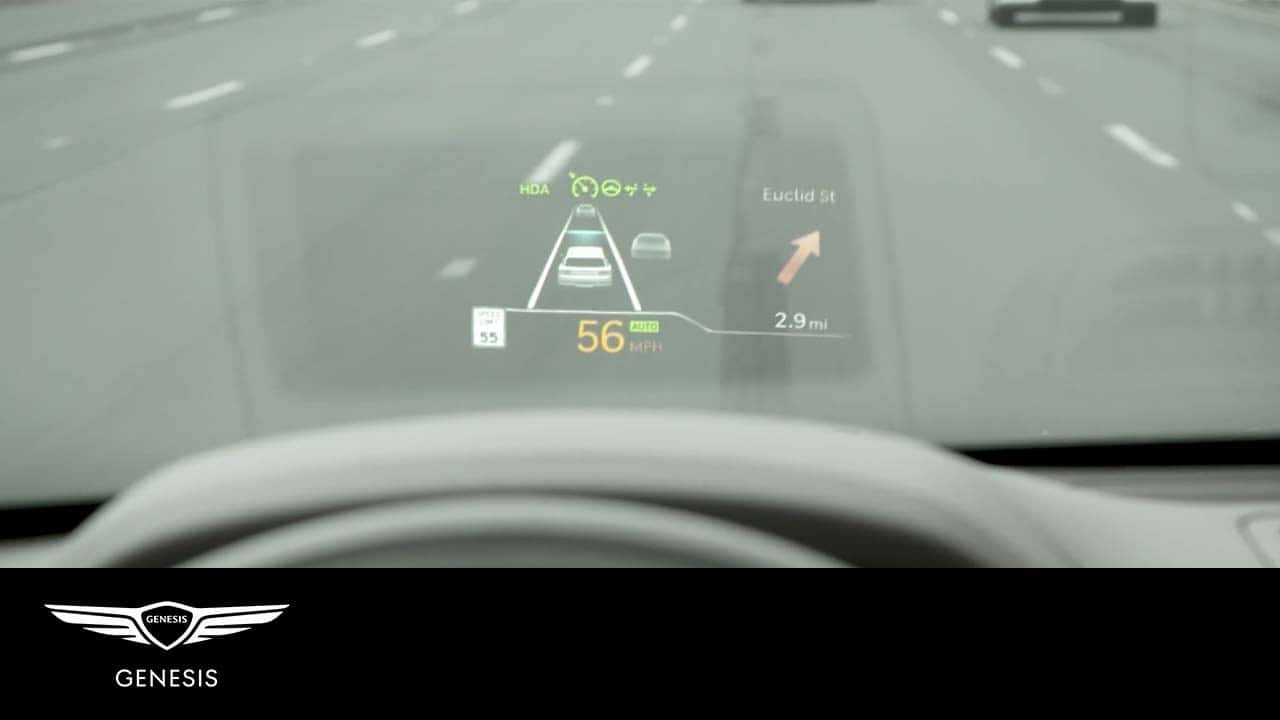
Key Information Shown on the Display
Once configured, your HUD becomes a steady stream of the details that matter most while driving. You’ll see your current speed, upcoming turn directions, active safety features like Highway Driving Assist, and blind-spot alerts, all without looking away from the road. On a GV70, the Head-Up Display works the same way, layering navigation and safety-suite information onto the windshield in that crisp, easy-to-read format. Pairing HUD with Driver Attention Warning gives you an added layer of support, since both systems work together to help you stay focused on the drive.
A few things can get in the way of a clear projection. If your seat position isn’t adjusted correctly, if you’re wearing polarized sunglasses, or if there are objects on the HUD cover, the image may become hard to read. Wet roads and strong outside light can also cut into visibility, so it helps to know these situations in advance rather than being caught off guard mid-drive.
Highway Safety Benefits of Using HUD
Highway driving demands quick decisions, and Head-Up Display technology is built to support faster information processing during those moments. According to U.S. Department of Transportation research, HUDs may improve safety by reducing the time it takes to view driving information compared to traditional head-down displays, though the same research notes drivers can sometimes fixate on the HUD and miss events happening around them. Use HUD as a supplemental aid alongside active scanning of your surroundings, not a substitute for it.
The blind-spot alert on your HUD gives you extra information, but it shouldn’t replace your own eyes. Always physically check your mirrors and look before changing lanes, particularly during merges on I-20 or I-26 where traffic can shift quickly. On the Route 277 corridor or I-77, where speed changes happen fast, having navigation and speed data in your direct line of sight can help you stay oriented without diverting your attention downward.
If you’d like a hands-on walkthrough of how these features work together, contact us for a feature walkthrough with our team.
HUD Availability by 2026 Genesis Model and Trim
HUD isn’t standard across every 2026 Genesis model and trim, so it helps to know what’s included before you shop. Here’s how availability breaks down across the lineup.
| Model | HUD Availability |
| GV60 | Performance AWD only |
| GV70 | 3.5T Sport Prestige AWD |
| GV80 | 2.5T Prestige AWD and higher trims |
| GV80 Coupe | All trims |
| G70 | 3.3T Sport Prestige RWD and higher trims |
| G80 | 3.5T Sport Prestige AWD and 3.5T Prestige Black AWD |
| G90 | All trims |
GV60, GV70 and GV80 Availability
Among the SUVs, availability varies by trim. The GV60 only offers HUD on its Performance AWD trim, while the GV70 offers it on the 3.5T Sport Prestige AWD configuration. The GV80 opens up HUD access starting at the 2.5T Prestige AWD trim and continues through higher trims in that lineup.
GV80 Coupe, G70, G80 and G90 Availability
The GV80 Coupe includes HUD across all trims, making it the most accessible SUV option in the lineup for this feature. Among the sedans, the G70 offers HUD starting with the 3.3T Sport Prestige RWD trim, the G80 includes it on the 3.5T Sport Prestige AWD and 3.5T Prestige Black AWD trims, and the G90 comes with HUD as standard equipment across every trim.
Since configurations can shift, we’d recommend confirming HUD availability on your specific vehicle before finalizing a purchase.
Experience Genesis HUD Technology at Genesis of Columbia
Schedule a Technology Demo
Curious to see the Genesis Head-Up Display in person? Contact us today or stop by Genesis of Columbia for a technology demo, and our sales and service teams will walk you through setup, customization, and troubleshooting so you feel confident using it on Columbia roads from day one.
Ongoing Ownership Support
Beyond HUD, Genesis ownership includes support like service valets and courtesy vehicles, roadside assistance, Genesis Connected Services, and complimentary map updates, all designed to keep your ownership experience smooth well after you drive off the lot.
Images by OEM

0 comment(s) so far on How to Use the 2026 Genesis Head-Up Display (HUD) for Safer Highway Driving