
How to Customize Your Genesis Head-Up Display (HUD Settings Guide)
Your Genesis head-up display (HUD) brings cutting-edge safety technology directly to your windshield, allowing you to view crucial driving information without looking away from the road. In this guide, we’ll walk you through everything you need to know about setting up and optimizing your Genesis HUD, though you can also schedule a professional service appointment to get the most safety and convenience out of every drive around the Columbia area.
What Is the Genesis HUD?
The Genesis HUD is like a mini movie projector that works with special windshield film, which looks like regular glass from the outside. It uses light diffraction to beam information right where your eyes naturally look while driving, creating a floating holographic display that doesn’t block your view ahead. The best part is that you don’t have to take your eyes off the road anymore, unlike traditional dashboards that force you to constantly break focus by looking down. It works even in bright environments, so you won’t have trouble viewing speed or navigation directions on sunny South Carolina days.
Which Genesis Models Offer HUDs?
Combining performance with practical technology, Genesis offers HUDs across its 2026 lineup. This innovative technology allows the automaker to compete well in the luxury SUV space and comes standard in the following models and trim levels:
- G70: 3.3T Sport Prestige RWD and AWD
- G80: 3.5T Sport Prestige AWD and Prestige Black AWD
- G90: All models
- GV60: Performance AWD
- GV70: 3.5T Sport Prestige AWD
- GV80: 2.5T Prestige AWD
Higher trims usually include a HUD as standard equipment, while base trims might have it available as an add-on, depending on the model and package you choose.
How To Access HUD Settings in Your Genesis
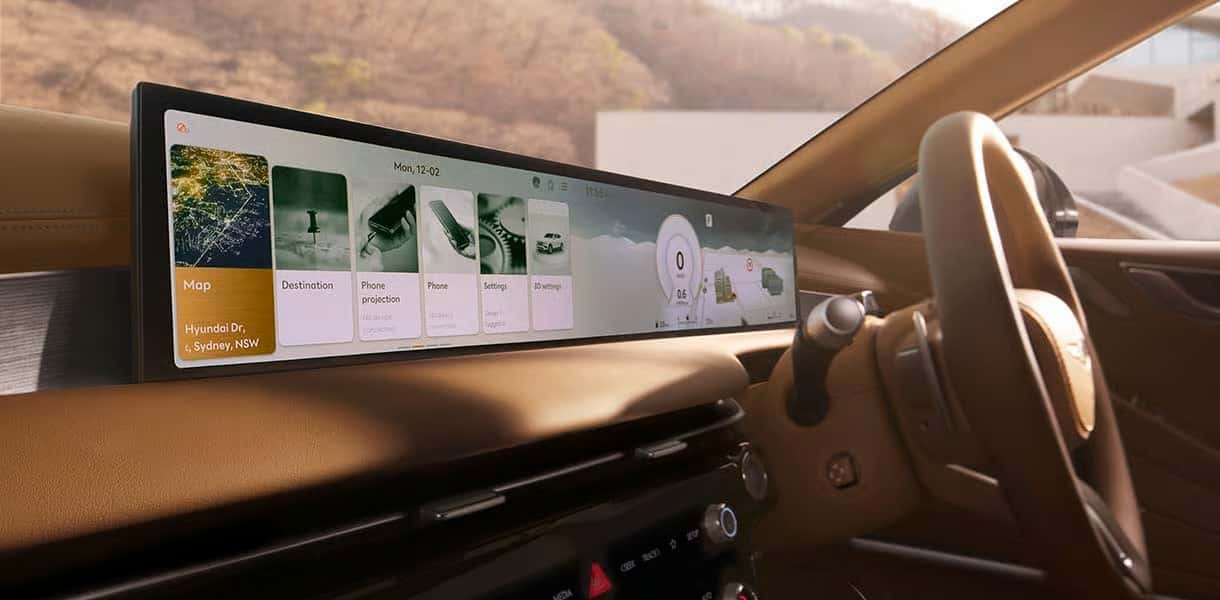
If it’s your first time using your vehicle’s HUD, start by accessing your dashboard’s touchscreen to set up the system. The exact process varies based on your vehicle’s year and model, but you’ll follow one of these two processes:
- Select “Setup” > “Vehicle” > “Head-Up Display”
- Select “Settings” > “Vehicle Settings” > “Head-Up Display”
Then, check the box next to “Enable Head-Up Display.” On this screen, you’ll also see options for “Display Adjustment Control,” which lets you modify brightness, contrast, and position, as well as “Content Selection,” which allows you to choose which information you want displayed. You can return to this menu any time you need to adjust your Genesis HUD settings.
Adjusting HUD Brightness and Position
“Display Adjustment Control” is the Genesis display feature you’ll use the most to fine-tune your HUD system and tailor it to your own preferences. First, you’ll need to ensure the display lines up with your natural eye level so you don’t have to move your head to see it clearly. Use the display height and rotation controls to move the image up or down until it sits comfortably in your field of view, and don’t forget to save your settings so you don’t have to repeat the process later.
Next, check the brightness control. This has a slider bar for manual adjustment and a selection option for automatic adjustment. The system will automatically set itself to daytime or nighttime mode, but you can use the controls here to dial in to exactly the right intensity of light.
What Information Can You Show on the Genesis HUD?
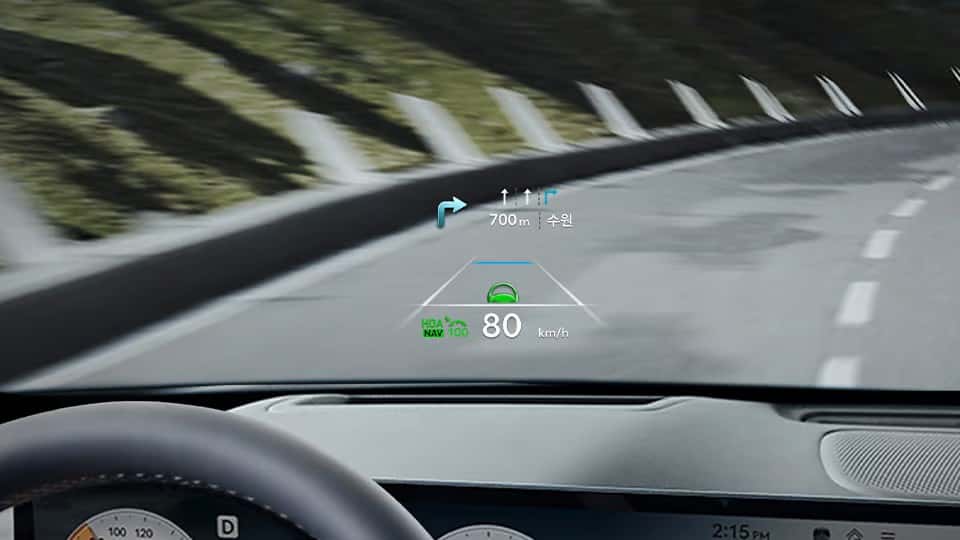
Your Genesis HUD can project all kinds of useful information while you drive, including:
- Navigation information: Vehicle speed, turn-by-turn directions, traffic updates, and traffic signs
- Safety alerts: Lane departure warnings, highway driving assist activation, cruise control status, and blind-spot safety alerts
- Multimedia information: Voice commands, radio stations, and media files currently playing in the car
You can also set up preferences for avoiding certain road types, select distance measurements for directions, and customize alert settings for camera warnings and safety notifications around school zones and construction areas.
Once you’re happy with your HUD preferences, you can save them in an individual driver profile, much like you can with your dashboard’s customizable home screen. Multiple driver profiles allow you and your family members to save HUD, dash, seat position, mirror, and climate control settings, so you can each automatically access your preferred setup every time you drive.
Tips for Reducing Distraction and Enhancing Safety
Here are some tips for smart HUD use:
- Avoid information overload: Stick with speed and navigation as your main displays, and limit secondary content, such as media or radio information that could pull your focus from the road.
- Stay hands-free: Take advantage of the HUD’s voice-activated command system to keep your hands on the wheel and your eyes on the road.
- Ensure a clear view: Avoid polarized sunglasses during the day, as these can impede your view of the holographic display, and make sure you use the dimmed mode at night to avoid glares that make it difficult to spot pedestrians or deer.
- Utilize other safety features: Use the HUD in conjunction with other Genesis safety and driver-assistance features, such as the driver attention warning to alert you to signs of distraction or fatigue, and highway driving assist to maintain a safe speed, distance, and lane position.
Expert HUD Support and Service at Genesis of Columbia
Now that you know the basics about setting up, customizing, and using your Genesis HUD system, you may be wondering what to do if you run into problems such as calibration issues, display problems, or integration concerns with other vehicle systems. Our certified service center technicians at Genesis of Columbia know HUD technology inside and out, and we handle advanced diagnostics for all of those issues and more.
Whether you need help with initial setup, advanced customization beyond basic user adjustments, or troubleshooting support, our Columbia team is ready to help you get the most from your Genesis investment. We offer service valets and courtesy replacement vehicles to keep you mobile while your car is serviced, comprehensive and professional maintenance services, 24/7 roadside assistance, Genesis Connected Services to keep your HUD and other connected features running smoothly, and complimentary map updates to your navigation system.
Customize Your Genesis HUD With Stivers Genesis of Columbia
Ready to optimize your Genesis HUD experience, or need professional help with this advanced tech system? Contact our expert service team online, or call us at 803-873-9175 to schedule an appointment for personalized support. Our team at Genesis of Columbia is here to help you stay safely connected to the road ahead.

0 comment(s) so far on How to Customize Your Genesis Head-Up Display (HUD Settings Guide)