
How to Use Genesis Highway Driving Assist II on 2026 Genesis Models
Highway Driving Assist II brings enhanced driver assistance capabilities to select 2026 Genesis models, helping drivers navigate highway travel with greater confidence and reduced fatigue. At Genesis of Columbia, our team regularly shows this technology to Columbia, SC drivers who want to understand how advanced driver assistance systems work in real-world conditions. This is a driver assistance feature requiring continuous driver attention, not an autonomous system.
Understanding Genesis Highway Driving Assist II
Highway Driving Assist II combines Smart Cruise Control with lane-keeping functionality to help maintain your vehicle’s position and speed on major highways. The system uses radar sensors, cameras, and machine learning algorithms to adapt to traffic flow while keeping your Genesis centered in its lane. When driving on I-20, I-26, or I-77 through Columbia, you’ll notice how HDA II adjusts to traffic patterns while you maintain steering control and monitor road conditions.
You’ll find the system on the 2026 G90, GV80, GV80 Coupe, and GV70, though availability depends on trim level. We encourage drivers to browse our 2026 Genesis inventory to identify which specific configurations include HDA II as standard or optional equipment.
Key Differences from Highway Driving Assist I
HDA II introduces automatic lane change assistance that kicks in when you activate your turn signal, making lane changes smoother when the system determines conditions are safe. Enhanced evasive steering capabilities help the vehicle respond to obstacles, while improved machine learning allows the system to adapt more naturally to your driving patterns over time.
The alert systems in HDA II got significant upgrades too. Speed limit notifications pop up on your OLED display, and the system provides side mirror warnings that work with the Blind-Spot View Monitor. These improvements create a more intuitive interaction between driver and vehicle compared to the previous generation.
How to Activate Highway Driving Assist II
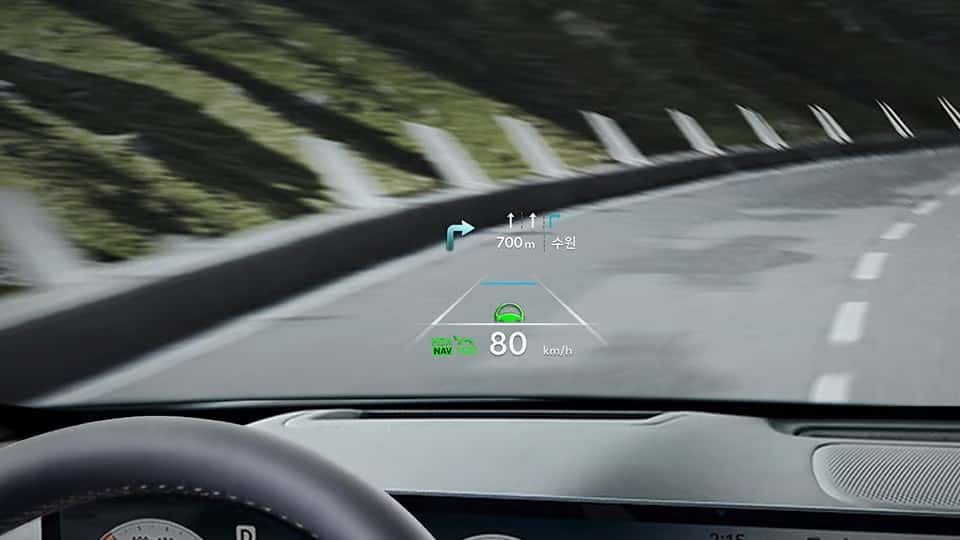
Before HDA II can function, your Genesis must be on a supported highway where the system recognizes road conditions as compatible. The technology automatically detects whether you’re on an appropriate roadway and won’t activate on local roads or exit ramps.
Prerequisites and Activation Steps
Access your vehicle’s settings by navigating to Setup, then Vehicle, followed by Driver Assistance, Driving Convenience, and finally Highway Driving Assist. Make sure the system is enabled in this menu. When you’re ready to activate HDA II on a compatible highway, press the driving assist button on your steering wheel. You’ll see visual confirmation on your instrument cluster showing the system is active.
Throughout operation, HDA II requires hands-on steering wheel contact. If the system detects your hands have left the wheel, you’ll receive escalating warnings reminding you to maintain physical contact. Driver engagement is mandatory, not optional.
Using Lane-Centering and Traffic Flow Assist
Once HDA II activates, lane-centering assist begins working to keep your Genesis positioned in the center of your lane. The system monitors lane markings through forward-facing cameras and makes subtle steering adjustments to account for curves and road contours. You’ll feel gentle steering inputs as the vehicle maintains its position, but you remain responsible for monitoring lane position and making corrections when needed.
The traffic flow component adjusts your vehicle’s speed based on the car ahead while maintaining a safe following distance. Use the distance button on your steering wheel to select your preferred following distance from several preset options. The system responds to traffic slowdowns and accelerations, helping reduce constant speed adjustments in variable highway traffic.
Smart Lane-Change Assist Features
Smart Lane-Change Assist represents one of HDA II’s most practical improvements. When you activate your turn signal while HDA II is operating, the system evaluates whether adjacent lanes are clear. If sensors determine a lane change can be executed safely, the vehicle provides steering assistance to guide you into the target lane.
Manual and Automatic Lane Changes
For automatic execution, push the turn signal lever when you see the green-ready indicator on your display. This signals the system to complete the full lane change maneuver. If you prefer more direct control, simply activate the turn signal as usual, and the system provides steering support while you guide the vehicle into the adjacent lane.
The table below outlines how different HDA II features activate and function:
| Feature | Functionality | Activation Trigger |
| Lane-Centering Assist | Keeps vehicle centered in lane, adjusts for curves | HDA II active on highway |
| Smart Lane-Change Assist | Steers into adjacent lane if safe | Turn signal + HDA II active |
| Automatic Lane Change | Full execution with driver confirmation | Turn signal lever push when green-ready |
Driver Attention Monitoring and Safety Alerts
HDA II includes monitoring systems that track your engagement with driving tasks. If the system detects signs of reduced attention (extended periods without steering input or inconsistent vehicle control), you’ll receive visual and audible alerts prompting you to refocus on the road. These alerts escalate if driver engagement doesn’t improve.
Forward Collision-Avoidance Assist works alongside HDA II to provide warnings if the system detects potential frontal collisions. While HDA II helps with lane keeping and cruise control, these safety features add layers of protection by monitoring threats the driver assistance system doesn’t directly address.
System Limitations and When Manual Control Is Required
Highway Driving Assist II has clear limitations that drivers must understand. The system shuts off on local roads, exit ramps, and in construction zones where lane markings may be unclear or absent. Heavy rain, fog, or conditions that obstruct sensors and cameras will prevent HDA II from operating reliably. Sharp curves that exceed the system’s steering capabilities also require manual control.
Poor visibility conditions and missing lane markings represent situations where you’ll need to take complete manual control. The system will alert you when it’s preparing to disengage, but don’t wait for warnings. Monitor road conditions continuously and take control whenever circumstances require it. Genesis designs these systems as driver assistance technology, not as replacements for attentive driving.
Experience Highway Driving Assist II at Genesis of Columbia
Our team at Genesis of Columbia provides hands-on demonstrations of Highway Driving Assist II for drivers interested in experiencing this technology firsthand. Located at 9960 Farrow Rd in Columbia, we can show you how HDA II operates on local highways and answer specific questions about system functionality. Contact our team to arrange a demonstration drive, or stop by during our sales hours. We’re open Monday through Friday from 9:00 AM to 7:00 PM, and Saturday from 9:00 AM to 6:00 PM.
When you’re ready to explore equipped 2026 models with Highway Driving Assist II, our sales team can discuss financing options that fit your budget. If you own a Genesis and need assistance with your existing driver assistance features, you can schedule service at our facility. Call us at 803-865-3055 to learn more about which Genesis vehicles in our current inventory include this advanced driver assistance technology.
Images by OEM

0 comment(s) so far on How to Use Genesis Highway Driving Assist II on 2026 Genesis Models