
Genesis Voice Commands: Complete 2026 Guide
Mastering Genesis Voice Commands changes how you interact with your vehicle, making every drive safer and more convenient. At Genesis of Columbia, we help Columbia, SC drivers unlock the full potential of their Genesis Voice Recognition system. Whether you’re navigating to Five Points or adjusting the temperature on a hot Carolina afternoon, voice commands keep your hands on the wheel and your focus on the road.
Getting Started with Genesis Voice Commands
The voice command button on your steering wheel activates the system. Press it once, and you’ll hear a confirmation beep after the Voice Recognition Guidance ends, signaling your Genesis is ready. Want to skip the guidance and jump straight into commands? Press the button again during playback.
Your Genesis uses two command types: Global Commands work immediately after activation, while Local Commands are only available when you’re in specific modes like navigation or media. The microphone positioned above your head captures your voice best when you maintain proper posture.
New to the system? Say “Help” at any time to display all available commands on your screen. This built-in reference saves you from digging through your manual. Exit voice recognition by holding down the steering wheel button or saying “Exit.”
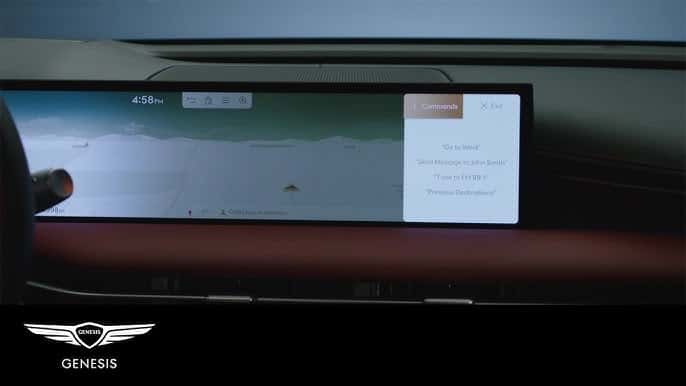
Using Voice Commands for Navigation
Voice-activated navigation eliminates the distraction of typing addresses while driving. Say “Find address” to enter a destination by speaking the street and city. For example, you might navigate to Vista restaurants or the Colonial Life Arena without touching the screen.
Common navigation commands include “Go home” to return to your saved home address, “Recent destinations” to revisit previous locations, and “Turn guidance on” to start route instructions. Finding points of interest is equally straightforward: say “Find hospital,” “Find police station,” or “Find grocery store near me” to locate Columbia-area facilities and retailers using natural language.
Making Calls and Managing Phone Functions by Voice
Once a compatible phone is paired through Bluetooth, Genesis voice recognition can help you place calls without searching through your contacts manually. Press the voice recognition button and use commands such as “Call Sarah,” “Call home,” or “Dial 803-555-0123.” When a contact has multiple saved numbers, the system may ask whether you want to call the mobile, work, or home number.
Voice commands can also help you review recent calls or redial the last number, depending on the infotainment system installed in your Genesis. Clear contact names tend to produce the best results. If two contacts have similar names, adding a last name or identifying label in your phone’s contact list can make recognition more accurate.
Before relying on phone commands, confirm that Bluetooth contact syncing is enabled and that your Genesis has permission to access your phonebook and recent calls. A contact saved only within a third-party app may not be available through the vehicle’s native voice system. Apple CarPlay and Android Auto can also provide their own voice assistants, so the response may differ depending on whether you activate the Genesis system, Siri, or Google Assistant.
For privacy and safety, review the displayed contact before confirming a call when possible. Genesis voice recognition is intended to reduce manual interaction, but drivers remain responsible for staying attentive and using connected features safely.
Controlling Climate Settings by Voice
Adjust your cabin environment without taking your hands off the wheel. On sweltering South Carolina summer days, say “Set temperature to 68 degrees” to cool down instantly. The system understands natural phrases like “Make it cooler,” “Increase temperature,” “Turn on air conditioning,” or “Switch to heating mode.”
This hands-free approach proves especially useful during Columbia’s dramatic seasonal temperature swings. You’ll appreciate being able to warm up on a chilly morning or cool down after parking in the sun without fumbling with controls.
Managing Audio and Entertainment Hands-Free
Control your entertainment system with simple voice commands. Switch stations by saying “Change station to 95.3,” or manage music playback with “Play next song” or “Pause music.” Bluetooth integration enables hands-free phone operation for calls without touching your device.
The system intelligently adjusts volume when providing navigation instructions, then returns to your previous settings. Media commands function as Local Commands, available when you’re actively using the audio system. Speak naturally to control playback, adjust volume, or switch between radio, streaming, or connected devices.
Troubleshooting Common Voice Command Issues
Background noise from open windows or sunroofs frequently causes recognition problems. Wind noise and traffic sounds compete with your voice, making it harder for the microphone to capture clear audio. The system also struggles with single-syllable contact names like “Tom” or “June,” and special characters in saved locations can confuse the recognition software.
Speaking too quickly, interrupting words mid-syllable, or unclear pronunciation contribute to misrecognition. Your posture matters too, since the microphone needs unobstructed access to your voice for optimal pickup.
Quick Fixes for Recognition Problems
Close windows and sunroofs to reduce background noise competing with your voice. This simple step dramatically improves accuracy on Columbia’s busy roads. Speak clearly at a natural pace, enunciating each word without rushing.
Check your posture to ensure the microphone has an unobstructed path. Adjust your seat if necessary to position yourself properly relative to the overhead microphone. When entering phone contacts or destinations, use multi-syllable names the system recognizes more reliably.
Some features require an active Connected Services subscription for full functionality. Voice Recognition accuracy may vary based on conditions, and we recommend consulting your vehicle’s multimedia system user manual for model-specific commands. For persistent issues or system updates, our service team provides expert support.
Why Available Genesis Voice Commands May Differ by Model
Not every Genesis model supports the same voice commands. Available functions can vary by model year, trim, infotainment system, vehicle equipment, software version, and Connected Services status. For example, some Genesis systems can use voice control for navigation, climate settings, radio functions, windows, and other vehicle features, while another model may support only a portion of those commands. Genesis owner materials specifically note that Dynamic Voice Control capabilities vary by vehicle and equipment.
Connected searches may also require an active Genesis Connected Services subscription and a working data connection. Features such as expanded point-of-interest searches, online information, weather, or other internet-based results may be unavailable when the subscription has expired or cellular service is weak.
The most reliable way to confirm the commands available in your vehicle is to press the voice recognition button and say “Help,” then review the command list displayed on the infotainment screen. Owners can also select their model year, model, and trim through the official MyGenesis manuals and resources section to locate the correct guide for their vehicle.
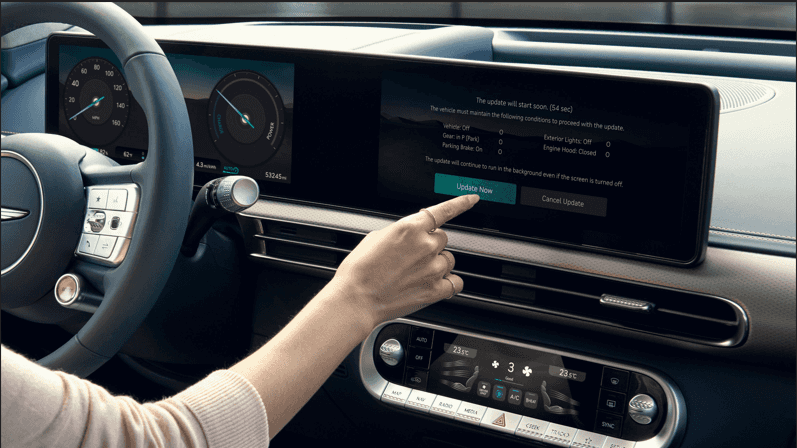
Because infotainment software can be updated, drivers should also keep their navigation and multimedia systems current. If a command described in another Genesis model’s guide does not work in your vehicle, it may simply be unsupported rather than malfunctioning. Genesis of Columbia can help verify the installed system, available Connected Services features, and model-specific voice capabilities.
Experience Genesis Voice Commands at Genesis of Columbia
We invite Columbia drivers to schedule a Connected Services demonstration at Genesis of Columbia. Our team will show you how to program favorite destinations, connect phone contacts, and master all system features through personalized, hands-on training.
Located at 9960 Farrow Rd, our service professionals stay current with Genesis technology to provide expert assistance with setup and advanced features. Voice commands make driving safer and more convenient by keeping your hands on the wheel and eyes on the road.
Contact us today to schedule your Connected Services demo. Call our service department at 803-873-9175 during business hours: Monday through Friday 7:30 AM – 6:00 PM, or Saturday 8:00 AM – 5:00 PM. Let Genesis of Columbia show you how Voice Recognition technology transforms your driving experience.
Images by OEM

0 comment(s) so far on Genesis Voice Commands: Complete 2026 Guide