
How to Update Your Genesis Infotainment Software for 2025 Models
Keeping your Genesis infotainment system updated is important to maintain your luxury driving experience. Regular updates deliver more responsive navigation, new tools, and improved system stability. Our team at Genesis of Columbia has put together this guide for both wireless and USB Genesis infotainment system update steps so you can pick what works best for you.
Why It’s Important To Keep Your Genesis Infotainment Updated
Your Genesis gets smarter with every update. Over-the-air software updates boost your car’s performance and stability while adding exciting features — all without having to leave your garage. You can update your vehicle’s system from home, skipping trips to the service center altogether.
How To Check Your Current Genesis Software Version
First, you need to find out which software version you’re currently running, which can differ based on your specific model. If you have Premium-class Gen5 or Gen6 navigation, hit “Setup” from your home screen, tap “General” on the setup menu, then find “SW Info/Update” in the general settings.
Standard-class Gen4 navigation needs one extra step. Start at “All Menus” on your home screen, then find “Setup,” tap “General,” and finally hit “SW Info.” Make sure to check your version often and update the Genesis software if it’s out of date.
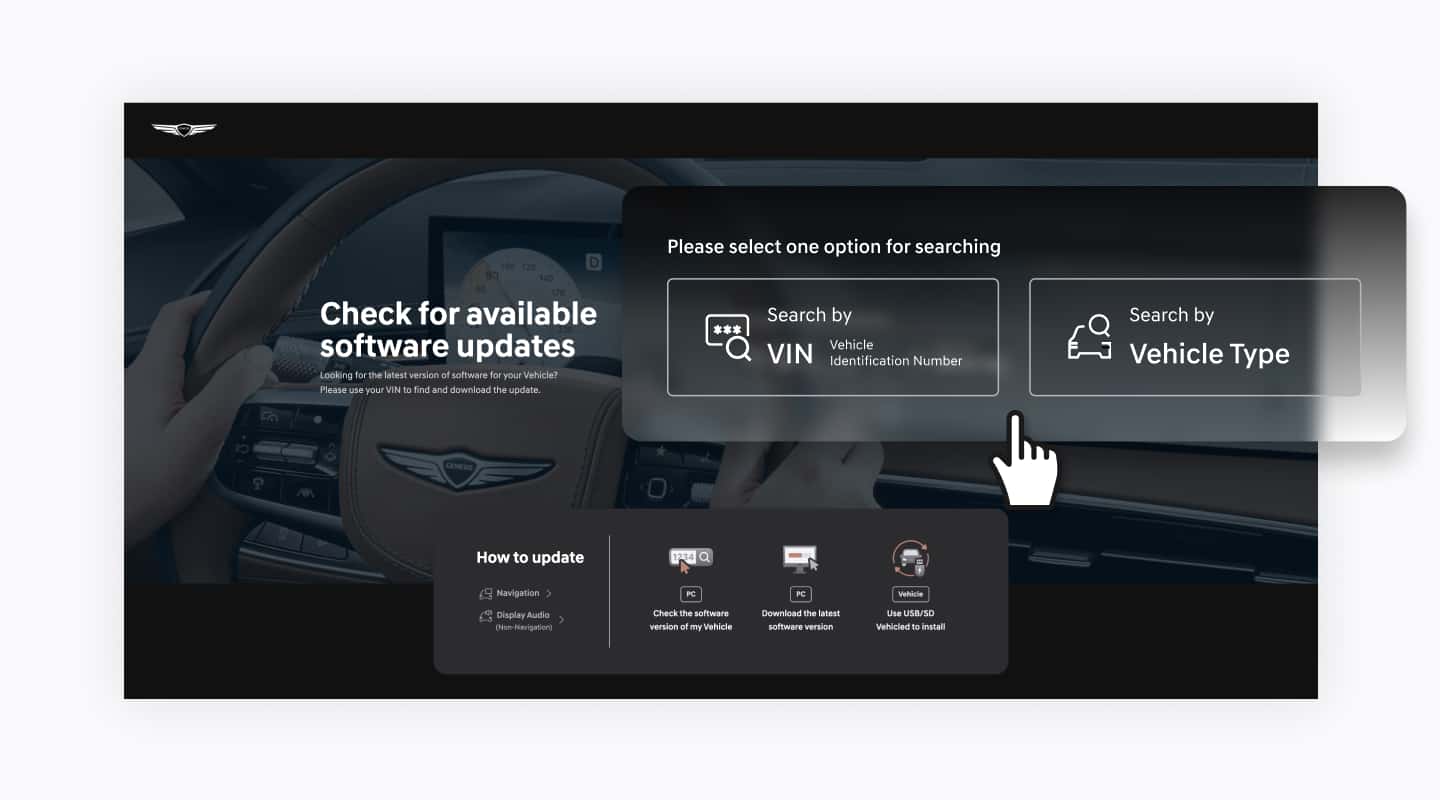
How To Perform a Software Update Over Wi-Fi
Wi-Fi updates are very convenient, but they do need some planning since your car is basically out of service during the process. When new software drops, your Genesis quietly downloads it in the background. After a drive, turn off your engine, and the infotainment screen will let you know if an update is ready.
Keep in mind that you can’t drive while updating. Plan for about 100 minutes of downtime, but set aside several hours to be on the safe side. During updates, your electric vehicle battery charging will also pause. The screen shows progress the whole time, so you’re not left wondering how long it will take. You can also use the Genesis Intelligent Assistant app to track updates.
How To Use a USB To Manually Update the Genesis Infotainment Software
If Wi-Fi is not readily available, USB updates also work great, though the exact steps depend on your system. Older Premium-class Gen2 navigation systems need an SD card, while newer Gen5 and Gen6 systems require a USB drive. For USB updates, grab a 64-128GB drive with exFAT formatting. Some newer setups need USB-C specifically. Using an SD card system? Get a 32GB card with FAT32 formatting and UHS-I speed class (at least 10MB/s).
During an update, your navigation system needs to stay powered on the whole time, so check that your battery has enough power before starting. If power cuts out or you yank the drive in the middle of an update, it might cause system issues, such as unresponsiveness or failure to start.
Common Issues and Troubleshooting Tips During Updates
Updates can sometimes cause unexpected issues, but most problems can be easily fixed. Power issues are the most common — if your system loses power, or you pull the media out too soon, the system might start having problems. Your navigation might also crash if you accidentally start the engine during an update. Basic prevention works wonders — make sure your battery is charged, keep connections solid, and don’t touch the engine start button while updating.
System security got a major boost. Genesis rolled out Connected Services with beefed-up security, including Digital Key 2.0, instant theft alerts, and built-in dashcam features. Still stuck after troubleshooting? Offline updates at a service center might cost extra, but sometimes, you need a pro to help you fix any issues.
Our professional tech experts at Genesis of Columbia can help you update your Genesis infotainment system at any time. Genesis builds amazing digital services, but when you need face-to-face help, we’ve got your back. We’re all about top-notch customer care, from helping you find your system’s current version to connecting with service networks.
Get Expert Support for Your Genesis Software Updates in Columbia, South Carolina
DIY updates can be straightforward, but nothing beats having experts handle things. At Genesis of Columbia, we provide top-notch customer care and can help you troubleshoot or update your Genesis software to ensure you have the latest Genesis infotainment features.
Book a service appointment online or call us at 803-873-9175. You can also drop us a message online. Our techs handle updates of any complexity and are happy to chat about your model’s unique features. Why drive around with outdated software? Contact us today and get everything your Genesis can offer.
Images by OEM

0 comment(s) so far on How to Update Your Genesis Infotainment Software for 2025 Models